

When onboarding a new employee, HR professionals must ensure setting up proper workstation essentials. This means providing the basic tools and environment they need to perform comfortably, safely, and efficiently.
This process is not limited to desk, furniture or IT setup for new hires. It’s about ensuring ergonomic furniture, the right technology, and a workspace that promotes health and productivity. You must maintain the right workstation setup throughout an employee’s tenure, beginning from the first day of onboarding till offboarding. Let me guide you about the process.
Key Takeaways:
Setting up workstation essentials is about how you help new hires feel valued through proper ergonomics. Key items include:
➡️ Proper Desk Setup
➡️ Ergonomic Chair
➡️ Setting Up the Right Device
➡️ Computer Accessories
➡️ Cable Management
➡️ Other Accessories & Equipment
Creating checklists, offering training and guides, upgrading timely, and prioritizing the right essentials first will help you set up workstation components properly.
How Does Proper Ergonomics Help?
A well-set-up workstation helps
- Minimize occupational injuries
- Reduce fatigue and stress,
- Improve morale and engagement,
- Stop unwanted movements during work hours
- increase productivity, and
- Retain the right workers
When employees aren’t distracted by pain or fatigue, they can stay focused and perform at their best. This creates a positive image of the employer and the HR department.
Research shows that ergonomically designed workstations lead to healthier and more engaged employees. According to the U.S. Bureau of Labor Statistics, tens of thousands of ergonomic-related injuries (like musculoskeletal disorders) result in emergency room visits each year. Each such injury can cost a company in lost productivity and higher workers’ compensation premiums.
How to Ensure an Ideal Workstation Setup?
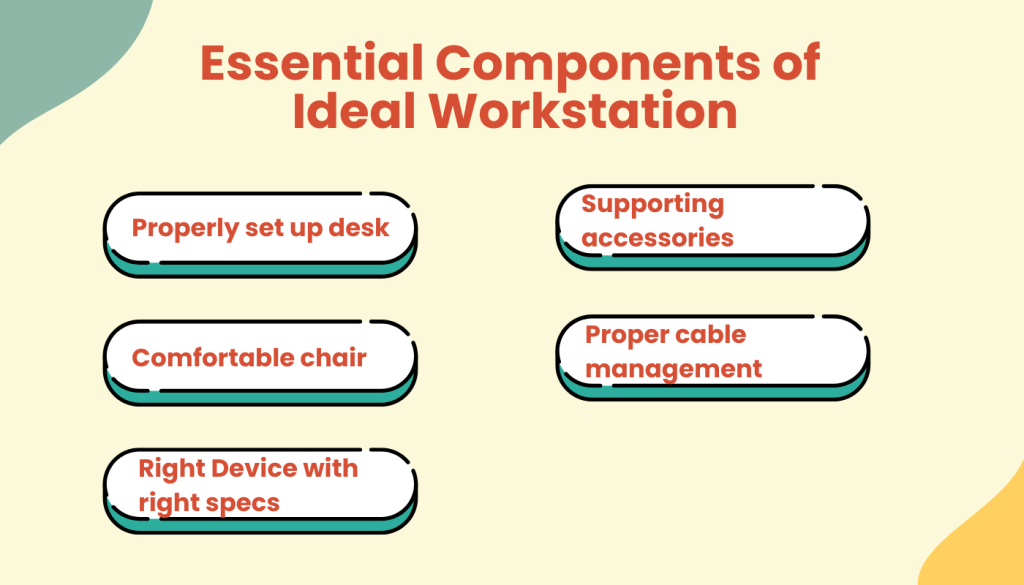
You can look at the essential components of a well-equipped workstation from two perspectives. One, the devices, furniture, software, and equipment you put there. And the other is how you are placing those in the workstation.
Proper Desk Setup
When selecting a desk, your goal should be to help the employee reduce physical strain, and improve productivity. So standard desks should be at a height where, when the employee’s chair is adjusted properly, their elbows are roughly at a 90-degree angle while typing.
If there are no budget constraints, you can opt for adjustable-height desks. Also known as sit-stand desks, these let employees switch between sitting and standing. This flexibility helps reduce fatigue from sitting all day.
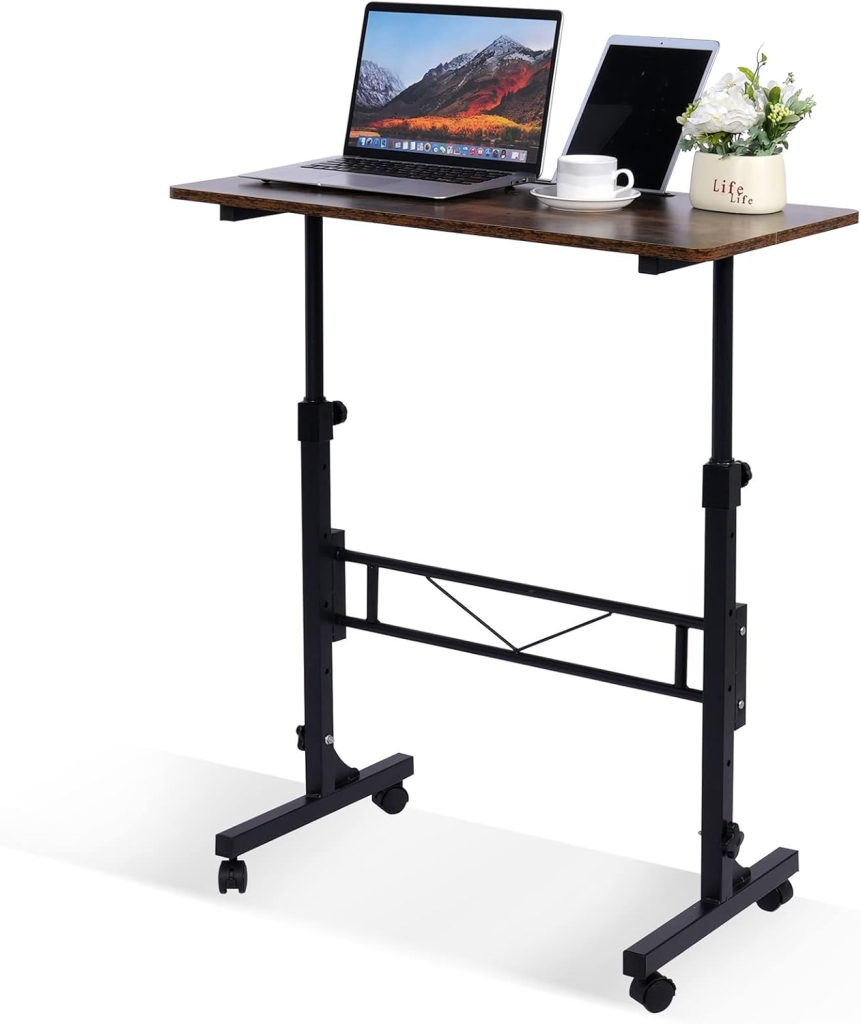
The key is to ensure the desk is sturdy and spacious. This allows for optimal placement of supporting items like keyboard, mouse, and monitors without cramping. Preferably a minimum depth of 60cm (2 ft) for monitors and accessories. Employees should be able to change postures, since static positions for too long can cause problems.
You can purchase Standing Desk with Adjustable Height starting at $69 or $75, from Amazon, depending on the brand.
Ergonomic Chair
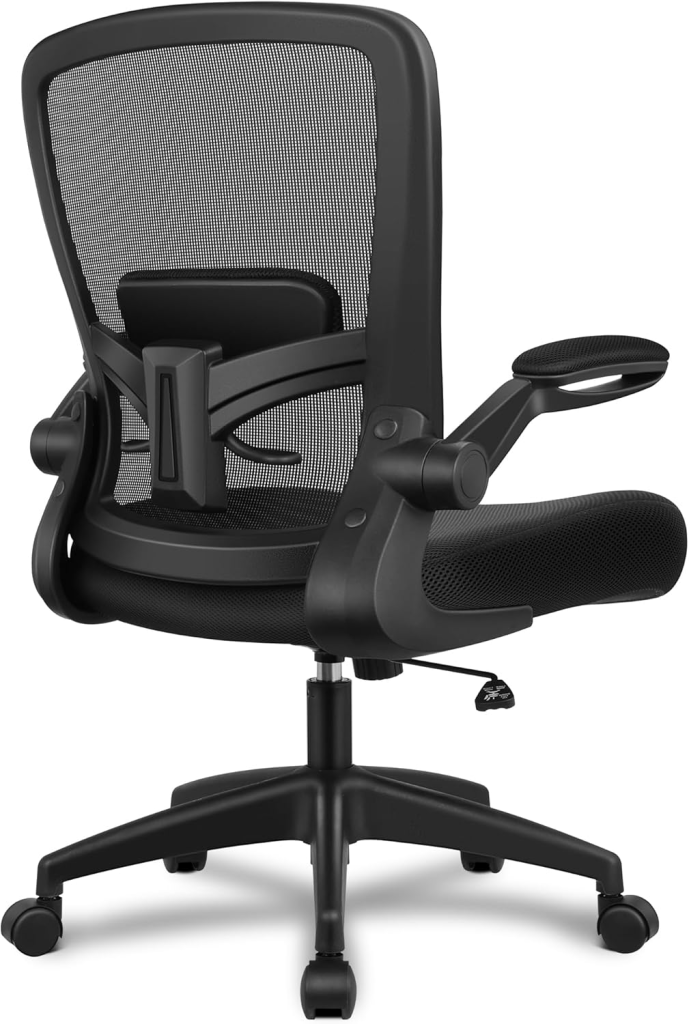
A comfortable chair is the ‘deal-breaker’ for employee comfort at their workstation. If the employee feels at ease and relaxed on their chair, they will want to work and contribute more. It especially creates a big impact during an employee’s first day experience. Look for chairs that are height-adjustable, with lower back support and adjustable armrests.
Lower end ergonomic chairs start at $99 and go higher at Amazon.
Employees come in all shapes and sizes, so the chair should accommodate different body types and allow a neutral sitting posture. A quality chair will let employees keep their lower back supported and their elbows at about desk height to reduce shoulder tension.
Setting Up the Right Device
When you have the right space and setup for adding a desktop or laptop, get the devices and install them. Make sure you have the right specs for the new employee to use in his role. You don’t need to buy a laptop with Core i9 processor and Radeon RX 9060 XT graphics card for Marketing Ads Specialists. Your device setup should be role-specific.
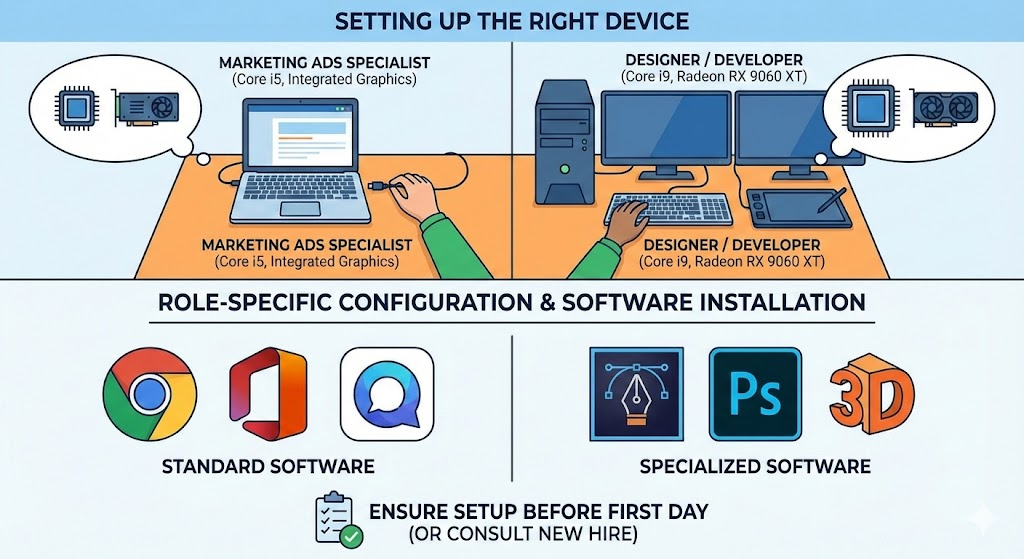
Along with the device, install the needed software as well. Ensure setup before the first day onboarding. Or you can consult with the new hire about what software he needs. This especially applies to designers and developers.
Computer Accessories
If your hires will use desktops, the monitors should be positioned correctly to avoid eye and neck strain. You should place the top of the monitor at or just below eye level, and at least an arm’s length away from the user. This prevents the person from constantly looking down or craning their neck.
For laptops, use a laptop stand. Or even just propping it on a stable platform can raise the screen to eye level. Also, remind employees that screen distance matters; about 20–30 inches away is a good rule of thumb, or roughly an arm’s reach, to reduce eye strain.
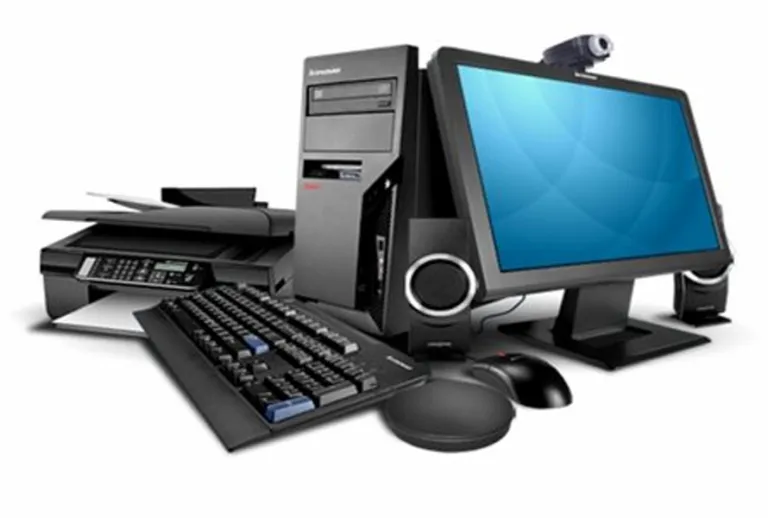
An external keyboard and mouse are essential if the laptop is on a stand or positioned for the right screen height. Otherwise, they’d be reaching up to type, causing strain. An external keyboard and mouse allow the laptop to be at eye level while typing in a comfortable position on the desk.
Even for desktop users, consider providing ergonomic keyboards and mice that promote a neutral wrist posture. For example, some ergonomic keyboards are split or curved to reduce wrist strain, and many mice are designed to support the hand’s natural angle.
Cable Management
Keeping cables organized is a small but impactful part of workstation setup. Loose wires can create tripping hazards, get tangled with chair wheels, or place unnecessary strain on device ports. Visual clutter from cords can make a workspace feel disorganized and distracting.
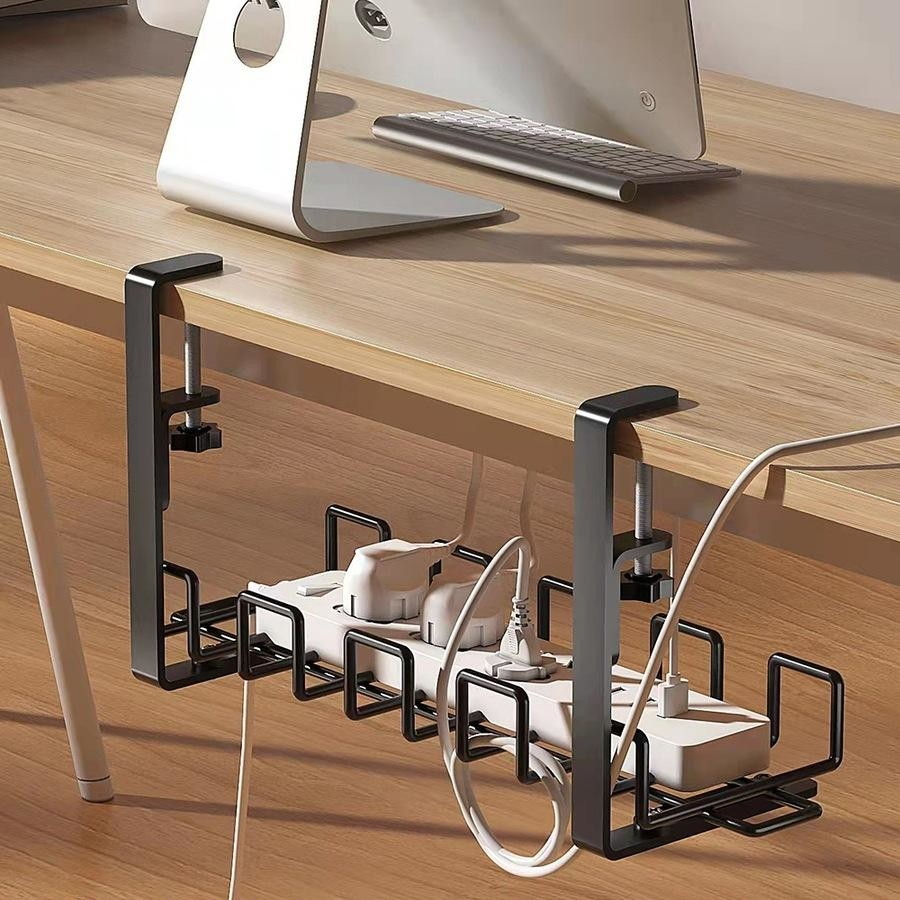
Proper cable management using tools like cable clips, straps, desk grommets, under-desk trays, or cable sleeves helps keep cables neatly routed and out of the way. It also supports electrical safety by reducing wear on cords and improving ventilation around electronics to prevent overheating.
Other Accessories and Equipment
Don’t overlook smaller workstation essentials that can greatly enhance comfort and efficiency. You can add footrests that help shorter employees maintain proper posture and circulation by keeping their feet flat. And then there are document holders that prevent neck strain by positioning papers at eye level.
Adequate lighting, through natural light, desk lamps, or full-spectrum bulbs, reduces eye strain and improves mood and alertness. Surge-protected power strips also enhance safety by preventing electrical damage and organizing cords to reduce tripping hazards.
Finally, headsets or noise-canceling headphones support focus in both remote and open-office environments by minimizing background noise and improving call quality.
Implementation Tips for Workstation Setup Essentials
For HR teams implementing these workstation improvements might seem daunting. Budget and resources are often limited. However, ergonomic solutions don’t always require a massive investment. Here are some practical, budget-conscious ways to get started:
- Use Checklists and Assessments: Begin with a workstation checklist to evaluate what you already have. OSHA provides evaluation checklists that HR or office managers can use to inspect current setups for common issues. You can add the list to a new hire onboarding checklist.
- Prioritize Essentials First: Manage the high-impact essentials. Chairs and monitors are the best investments to prevent discomfort. If you can’t afford everything at once, consider a phased approach: replace the worst chairs this quarter, get a batch of monitor stands next quarter, etc..
- Training and Awareness: Organize a short workshop or lunch-and-learn on ergonomic setup with new hires. You could invite a physical therapist or use free online resources to teach staff how to adjust their own workstations.
- Assess and upgrade: After changes are implemented, keep an eye on the outcomes. Fewer complaints of discomfort? Any reduction in absenteeism due to musculoskeletal issues? Use those wins to build the case for further investment. Employee feedback is gold here. Perhaps send a follow-up survey after new chairs are introduced, to quantify improvements in comfort.
FAQs
What does an “ergonomic workstation” include?
What’s the correct monitor height and position?
How often should we run an ergonomic assessment?
Summing Up
Setting up workstation essentials is a strategy that yields significant returns. Start with the basics: ensure every employee has a supportive chair, a suitable desk space, and their computer at eye level. Emphasize the human element. Teach and encourage people to adjust their environments and habits for better health.
Over time, continue refining and responding to feedback. It helps build a workplace where employees know their well-being is a priority, driving them to do their best work every day.
Leave a Reply